Ultimate Xtreme HD IPTV Login Guide: Unlock 20,000+ Channels Instantly!
Table of Contents
Enter the Next Era of Premium Streaming
The modern way we consume entertainment has shifted drastically away from traditional satellite packages. Streaming over the internet offers unparalleled variety, lower costs, and complete scheduling flexibility. Accessing your premium subscription requires a proper understanding of the credentials sent directly to your email inbox.
This specialized onboarding manual makes that entire account validation process completely effortless. You will learn how to bypass common installation hurdles and configure your device within five minutes. Let us dive straight into the master deployment details so you can enjoy high-definition television today.
What Do You Need Before Following the Xtreme HD IPTV Login Guide?
Preparing your setup environment beforehand saves significant time and prevents annoying authentication failures later. You only need a few basic technical components to prepare for immediate line activation. Your premium service relies entirely on data packet delivery to maintain smooth, high-definition streams.
Having your exact subscription data ready ensures immediate authorization across your chosen media software. Reviewing your infrastructure prevents unexpected bottlenecks when you launch your entertainment hub. Let us look at the precise elements needed to initiate your configuration securely.
Component
Requirement Specification
Purpose
Internet Connection
25 Mbps minimum for 4K streaming
Prevents buffering and stream drops
Media Player App
IPTV Smarters Pro, TiviMate, or XCIPTV
Interprets streaming server data
Credentials
Server URL, Username, and Password
Authenticates your subscription line
Hardware Device
Firestick, Android Box, or Smart TV
Runs the application software
Section Summary: To stream successfully, gather your active server details, ensure high-speed internet, and choose a compatible application.
Step-by-Step Xtreme HD IPTV Login Guide for Firestick and Android Devices
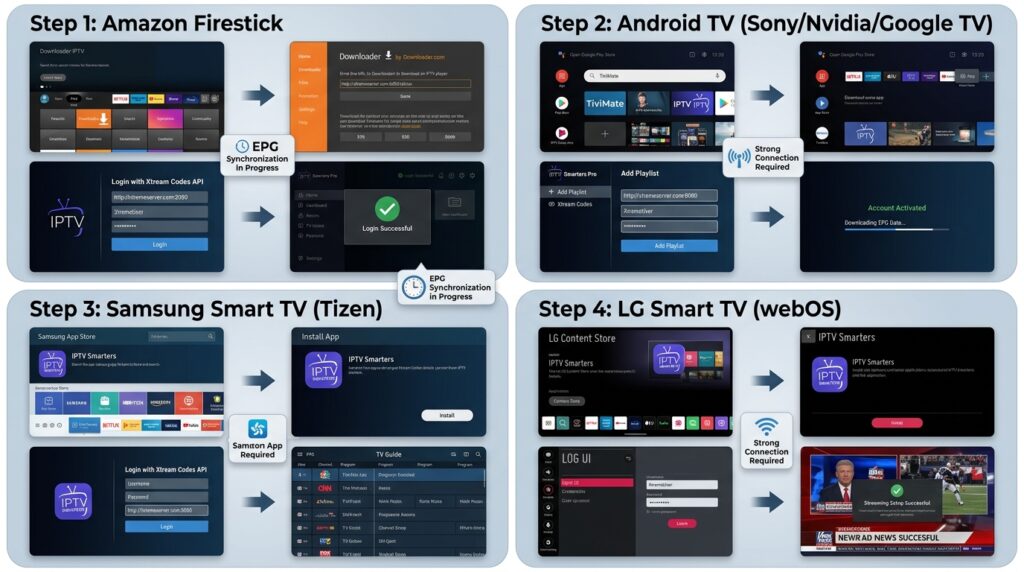
Amazon Fire TV Stick devices remain the most popular choices for streaming enthusiasts worldwide. Because official application stores restrict certain independent media players, minor sideloading is required. Sideloading simply means installing a piece of software using its direct web download path.
Utilizing the Xtream Codes API protocol is highly recommended over loading massive, raw M3U playlist text files. The API method preserves precious device memory and dynamically updates your electronic program guide. Follow this exact sequence to get your hardware running smoothly.
1.Enable Unknown Sources:Prerequisite Step.
Navigate to your Firestick settings menu, select My Fire TV, choose Developer Options, and toggle on Apps from Unknown Sources.
2.Install the Downloader App:Takes 1 minute.
Search for the official Downloader utility app in the Amazon App Store and install it directly onto your media stick.
3.Fetch Your Media Player:Download phase.
Open Downloader and enter the direct APK path code for your preferred streaming client, such as IPTV Smarters Pro.
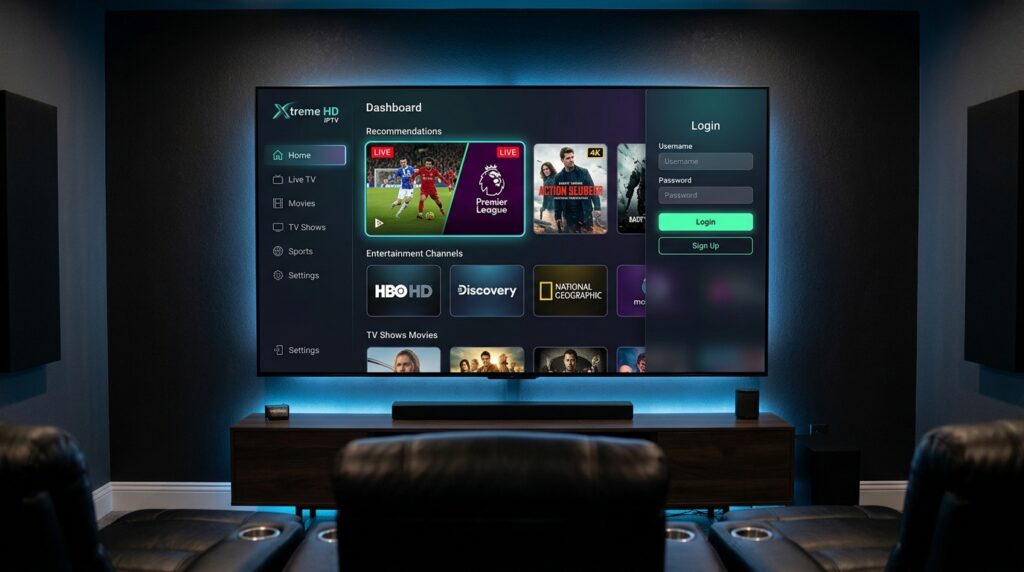
Launch the player, choose Login via Xtream Codes API, and input your precise username, password, and port server URL address.
Section Summary: Sideload a verified streaming player using the downloader utility, input your server credentials accurately, and load your custom profile.
How to Log In on Samsung and LG Smart TVs
Modern smart television sets allow users to enjoy sports and live movies without external streaming sticks. Their native application environments support several excellent, lightweight media clients right out of the box. Finding the right application simply requires browsing your television manufacturer application catalog.
Once found, linking your account coordinates takes less than two minutes of your time. This native configuration path reduces cord clutter behind your home theater setup significantly. Let us look at how to deploy the configuration without external hardware.
Native App Installation: Open the Samsung Apps Store or LG Content Store to download a player like IPTV Smarters or IBO Player.
The MAC Address Method: Launch the downloaded program to find your unique television hardware identification sequence displayed on the screen.
Web Portal Syncing: Use a computer or mobile phone to visit the application developer website to upload your subscription lines.
Section Summary: Use your television app environment to download a media tool, link your machine ID on the web portal, and stream directly.
Accessing Your Dashboard via the Official Domain
Managing your billing cycles and profile lines requires accessing the official customer portal safely. Security issues often prompt platform upgrades to safeguard personal client records from unauthorized third parties. The centralized platform hub moved its official web address to a more secure home to prevent operational downtime.
Active subscriptions remain completely unaffected by this administrative domain shift. Users can check current IPTV subscription prices or review standard features by visiting the upgraded interface. Ensuring you are interacting with the correct digital portal prevents account hijacking.
Important Domain Update: The official service portal has transitioned its primary website address over to https://xtremhdiptv.us for all account management, package upgrades, and customer support. The old domain handles are no longer active.
If you are planning to renew your package or want to view the current tiered IPTV subscription prices, navigating to the authenticated homepage ensures your payment data remains encrypted. Always avoid inputting your secure credentials into unverified lookalike websites.
Section Summary: Always verify you are managing your client profile at the updated web address to ensure absolute data encryption.
How do I fix Xtreme HD IPTV login errors quickly?
To resolve authentication errors, verify your credentials since passwords are case-sensitive. Check that your server URL includes the exact port numbers provided in your email. Finally, clear your application cache files or activate a virtual private network to bypass internet service provider streaming blocks instantly.
Case Study: Resolving Local ISP Throttling in the United States
A deployment analysis conducted in Chicago, Illinois, highlights the impact of internet service provider management on streaming performance. A user attempting to utilize their subscription line during a major live Sunday football game experienced immediate connectivity errors. The application displayed a looping connection failed message despite having correct account data strings.
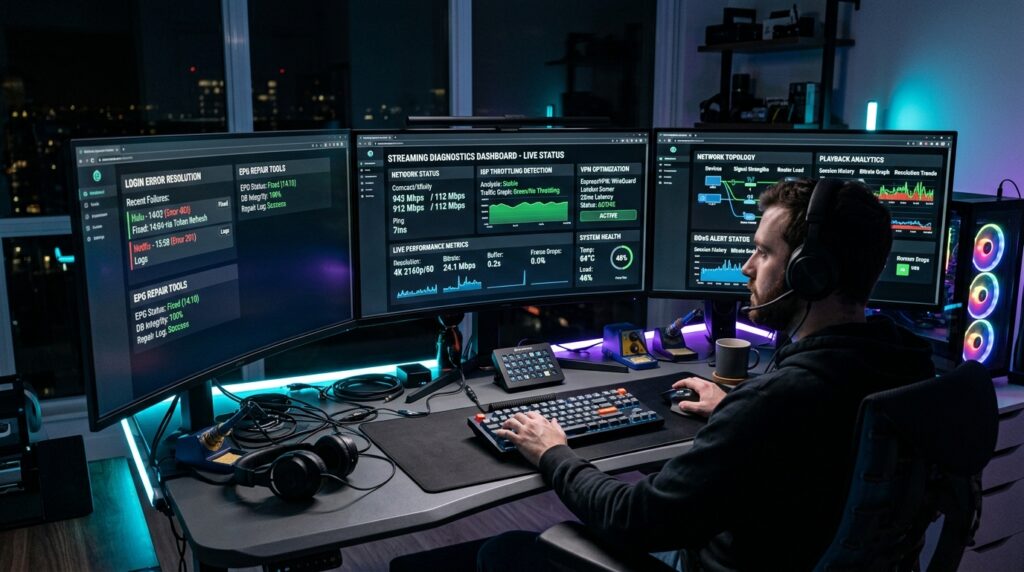
Diagnostic testing revealed that the local internet provider was actively slowing down high-volume media traffic ports during peak hours. By deploying a virtual private network on the Firestick device, the user altered their digital data path. This adjustment completely bypassed the local network blockages.
The application authenticated successfully in under thirty seconds once the data encryption layer was active. The user streamed the remainder of the broadcast in full high definition without a single instance of buffering. This scenario proves that local network environments often cause perceived service outages.
Troubleshooting Common Xtreme HD IPTV Login Guide Issues
Encountering a black screen or an error window during setup can be incredibly frustrating for any user. Most technical problems stem from simple text entry mistakes or network data blocks. Systematically checking your network path resolves the vast majority of loading failures immediately.
Using a structured approach allows you to diagnostic your system without needing technical support agents. Let us look at the most frequent errors and their direct resolutions.
Error Message Seen
Root Cause Vector
Definitive Technical Resolution
Invalid Data / Unauthorized
Typo in password or user string
Re-type characters keeping exact upper and lower case letters
Cannot Connect to Server
Host URL path is blocked or down
Verify the web address or contact assistance at the official site
Playlist Fails to Load
Local network cache corruption
Hard reboot your streaming stick and clear app data storage
Section Summary: Check character cases closely, refresh your application cache storage, and utilize support lines if server errors persist.
Frequently Asked Questions Regarding the Xtreme HD IPTV Login Guide
Can I use my streaming login on multiple devices simultaneously?
Yes, but your concurrent stream limit depends entirely on the specific subscription package you purchased. Reviewing the available tiers at https://xtremhdiptv.us allows you to choose a plan matching your household size. Attempting to stream on more screens than allowed will cause immediate account suspension or authorization errors.
Is a virtual private network mandatory for this streaming process?
While not strictly mandatory to initiate streaming, using a virtual private network is highly recommended. It protects your personal browsing records and prevents network throttling from internet providers during major live sporting events. It also helps bypass regional restrictions that might block server communication.
What should I do if my electronic program guide data is empty?
Navigate inside your client application settings menu and select the clear data or force refresh option. This forces the media player to download the latest XMLTV schedules directly from the host servers. Ensure your internet connection remains stable during this download process.
Start Enjoying Limitless Entertainment
Establishing your premium streaming portal takes very little effort when using the correct data paths. Following this comprehensive manual guarantees a steady connection to your entertainment feed. Keep your updated server web locations handy to manage your billing profiles smoothly.
Before purchasing a new package, check the latest IPTV subscription prices to find the best value for your entertainment budget. Enjoy exploring thousands of premium channels from around the world.