

Streaming your favorite live sports, news, and movies should be a seamless experience, but it becomes a nightmare when Xtreme HD IPTV keeps buffering during a crucial moment. In 2026, streaming technology has reached new heights, yet network congestion and hardware limitations remain common hurdles for users in the United States. If you are tired of the spinning blue circle, you need a technical deep dive into why these interruptions occur and how to eliminate them permanently.
This comprehensive guide explores every potential bottleneck, from ISP throttling to internal app configurations. By following these expert-vetted steps, you can transform your home entertainment setup into a high-performance streaming hub. We will look at hardware upgrades, software tweaks, and the essential role of security tools in maintaining a stable connection.
Table of Contents
Why Your Xtreme HD IPTV Keeps Buffering: The Technical Truth
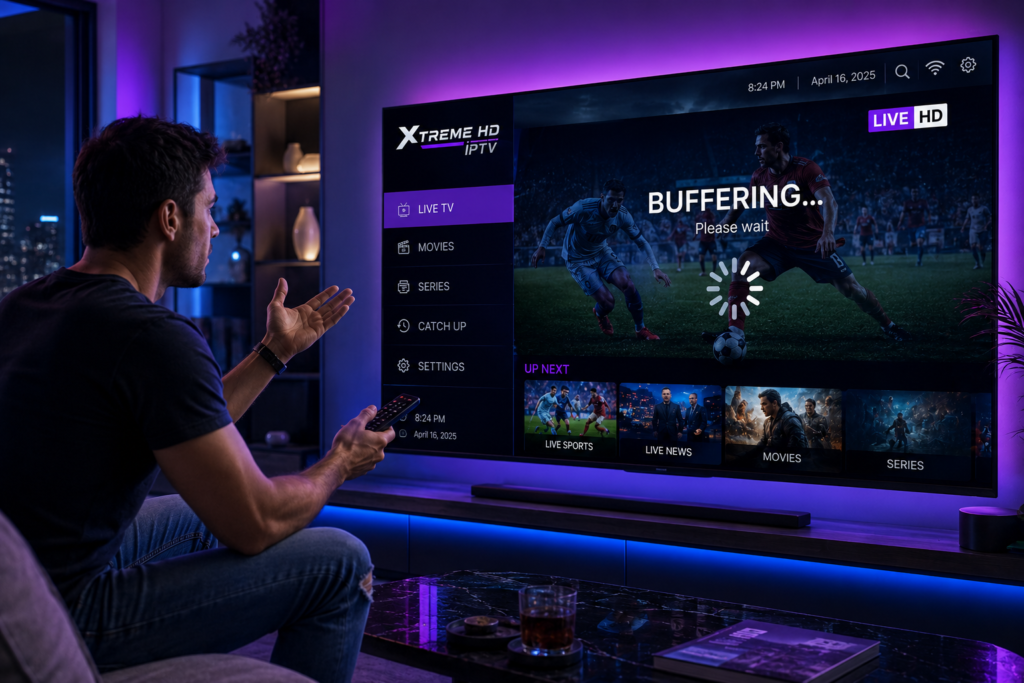
There is rarely a single reason why your Xtreme HD IPTV keeps buffering; it is usually a combination of local and external factors. Many users blame the service provider immediately, but the issue often lies within the “last mile” of the internet delivery system. In the United States, major ISPs often employ aggressive traffic management strategies that specifically target high-bandwidth video streams.
Data packets for IPTV are delivered via the User Datagram Protocol (UDP) or Transmission Control Protocol (TCP). If your network experiences “packet loss,” your player has to wait for missing data to arrive before it can continue playback. This delay is exactly what triggers the buffering icon on your screen.
Common Culprits for Streaming Lag
- ISP Throttling: Providers detect high-volume streaming and intentionally slow down your specific connection to save bandwidth.
- Local WiFi Interference: Signals from microwaves, baby monitors, or neighboring routers can disrupt the 2.4GHz or 5GHz bands.
- Outdated Hardware: Running modern 4K streams on a first-generation Firestick or a budget Android box often leads to CPU exhaustion.
“Buffering is not just a speed problem; it is a stability problem. A 100 Mbps connection that is unstable will perform worse than a stable 25 Mbps connection for live TV.” — Digital Streaming Weekly
Network Requirements: What You Actually Need for 4K
One of the first questions users ask is how much speed they need when Xtreme HD IPTV keeps buffering. While 10 Mbps might be enough for a standard Netflix stream, live IPTV is much more demanding because it doesn’t have the same aggressive pre-caching capabilities. For a flawless 2026 experience, you should aim for significantly higher overhead than the bare minimum.
Speed Benchmarks for Buffer-Free IPTV
| Stream Quality | Minimum Recommended Speed | Ideal Speed (for 2026) |
| Standard Definition (SD) | 5 Mbps | 15 Mbps |
| High Definition (HD/1080p) | 15 Mbps | 30 Mbps |
| 4K Ultra HD (UHD) | 40 Mbps | 75+ Mbps |
If your speed tests show you have 100 Mbps but your Xtreme HD IPTV keeps buffering, the issue is likely “jitter” or “latency.” High latency means it takes too long for your device to communicate with the IPTV server. You can check your network health by visiting official support pages to learn about ping and jitter metrics.
Does a VPN stop Xtreme HD IPTV from buffering?
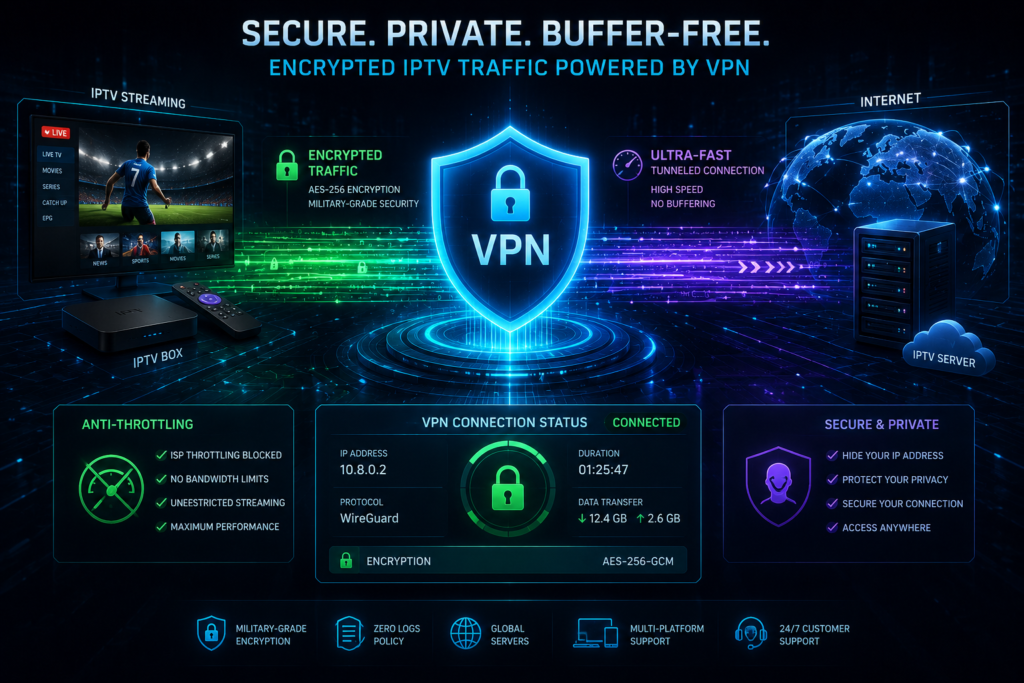
Yes, using a high-quality VPN is often the most effective way to stop buffering caused by ISP interference. When your Xtreme HD IPTV keeps buffering during peak hours (like a Sunday night NFL game), your ISP is likely “throttling” your connection. A VPN encrypts your traffic, making it impossible for the ISP to see that you are watching IPTV, which prevents them from slowing you down.
In 2026, the best VPNs for streaming use the WireGuard protocol, which offers the fastest speeds with the lowest overhead. This ensures that the encryption process doesn’t become its own bottleneck. Many users find that connecting to a server in a nearby city actually improves routing and reduces the number of hops your data takes.
Top VPN Benefits for IPTV Users
- Bypassing Throttling: Masks your traffic type to ensure full-speed delivery from your ISP.
- Privacy Protection: Keeps your streaming habits private from data-mining corporations and financial news trackers.
- Global Access: Allows you to connect to servers closer to the IPTV source, potentially reducing latency.
For the most reliable results, industry experts often recommend checking VPN reviews to find providers that offer dedicated “streaming-optimized” servers. This layer of security is no longer optional for serious cord-cutters in the United States.
How to fix Xtreme HD IPTV keeps buffering on Firestick?
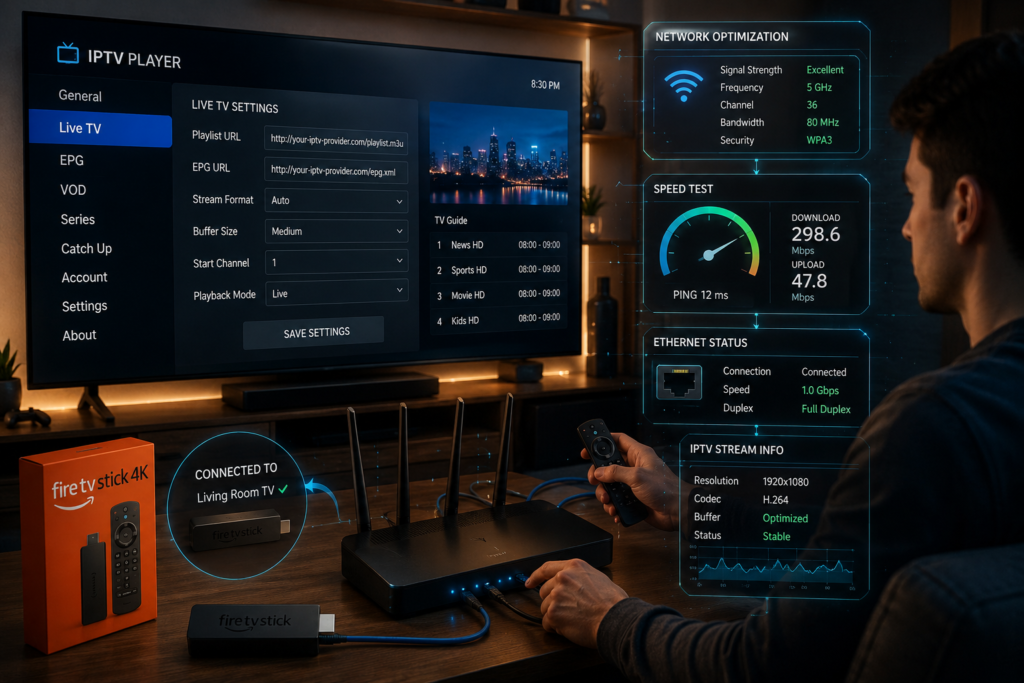
The Amazon Firestick is the most popular device for IPTV, but it requires specific optimization to prevent lag. If your Xtreme HD IPTV keeps buffering on a Firestick, it is likely running out of RAM or processing power due to background apps. Amazon’s interface is notorious for running “Data Monitoring” and “Collect App Usage” tools that eat up resources.
To fix this, you must dive into the “Developer Options” and “Privacy” menus. Disabling automatic updates and clearing your system cache once a week can significantly improve performance. Additionally, ensure your Firestick is plugged into a wall outlet rather than a USB port on your TV, as this provides more stable power for the WiFi antenna.
Step-by-Step Firestick Optimization
- Clear App Cache: Go to Settings > Applications > Manage Installed Applications > Xtreme HD App > Clear Cache.
- Disable Data Monitoring: Navigate to Settings > Preferences > Data Monitoring and turn it OFF.
- Update Fire OS: Go to Settings > My Fire TV > About > Check for Updates to ensure you have the latest 2026 performance patches.
Advanced Player Settings: TiviMate and IPTV Smarters
Sometimes the app itself is the reason Xtreme HD IPTV keeps buffering. Most professional users in 2026 prefer using TiviMate or IPTV Smarters Pro because they allow for granular control over the playback engine. One of the most important settings is the “Buffer Size,” which determines how many seconds of video are pre-loaded into your device’s memory.
Increasing the buffer size to “Large” can help smooth out minor network hiccups. However, if your device has very low RAM (like an older Firestick Lite), a large buffer might cause the app to crash. You should also experiment with the “Video Decoder” settings, switching between Hardware and Software decoding to see which your specific processor handles better.
Optimal Settings Checklist
- Buffer Size: Set to “Large” or “10 Seconds” for high-speed connections.
- Output Format: Switch from “MPEG-TS” to “HLS” if your provider supports it for better stability.
- Auto Frame Rate (AFR): Turn this ON to match the stream’s frame rate with your TV’s refresh rate.
| Setting | Recommended Value | Reason |
| Buffer Size | 5-10 Seconds | Pre-loads data to bridge minor speed drops. |
| Video Decoder | Hardware | Uses the device’s GPU for smoother 4K playback. |
| Tunnelled Playback | ON (if available) | Reduces CPU usage on Android 11+ devices. |
Frequently Asked Questions about Xtreme HD IPTV Buffering
Why does my stream freeze but my internet is fast?
This is often due to routing issues or ISP throttling. Even if a speed test shows 200 Mbps, your ISP may be slowing down the specific path to the IPTV servers. Using a VPN can often bypass these “traffic jams” and restore your full speed.
Can a cheap HDMI cable cause buffering?
While a cable won’t cause “network buffering,” a low-quality cable can cause flickering or digital artifacts that look like lag. For 4K streaming in 2026, always use an industry-certified HDMI 2.1 cable to ensure the bandwidth between your device and TV is sufficient.
Is my Firestick overheating?
Yes, overheating is a common cause of performance degradation. If your Xtreme HD IPTV keeps buffering after 30 minutes of use, your device may be thermal throttling. Use the HDMI extender that came with your Firestick to move it away from the back of the hot TV panel.
Conclusion
Dealing with a situation where Xtreme HD IPTV keeps buffering is frustrating, but it is a solvable technical challenge. By combining a high-speed wired connection, a modern streaming device, and a robust VPN, you can eliminate 90% of all playback issues. Remember that streaming is a dynamic ecosystem, and what worked last year might need an update in 2026.
Keep your apps updated, clear your cache regularly, and don’t be afraid to upgrade your hardware if your current box is more than three years old. With these professional tweaks, you can sit back and enjoy your Xtreme HD service exactly the way it was intended—in crystal-clear, uninterrupted high definition.