
Imagine sitting down to watch a thrilling live sports match only for the screen to freeze at the exact moment a goal is scored. This frustrating loading circle is a common nightmare for millions of entertainment fans cord-cutting across the United States. Fortunately, achieving a smooth and uninterrupted television experience is entirely possible when you deploy the right network settings and premium entertainment configurations. This comprehensive guide provides actionable strategies to implement permanent buffer-free IPTV solutions for your home entertainment ecosystem.
Table of Contents
Understanding What Causes IPTV Buffering
To solve an issue permanently, you must first comprehend the underlying technical triggers behind playback interruptions. Local network congestion frequently develops when multiple smart devices inside a household consume massive internet data simultaneously. High-definition television data streams require a consistent, uninterrupted lane of broadband delivery to display live frames without sudden drops. If someone else is downloading files or gaming, your live feed will likely stagger and experience annoying hiccups.
Internet Service Providers often intentionally slow down massive continuous data packets through a process known as bandwidth throttling. Providers recognize high-bandwidth live television usage and limit your speeds to preserve general network availability for other regional neighborhoods. This artificial throttling bypasses basic speed tests, meaning your internet appears fast while your video application struggles. Investing in reputable IPTV subscription plans remains critical to avoiding poor third-party configurations that trigger these network blocks.
Server overload occurs when thousands of users connect to a single streaming host at the exact same moment. This problem frequently peaks during global sports events or highly anticipated television season finales. If the underlying infrastructure lacks modern load balancing, the server simply fails to deliver video data packets quickly enough. Choosing a reliable, industry-proven system like [suspicious link removed] ensures your data routes through premium servers capable of handling intense viewer traffic.
Hardware limitations in outdated streaming sticks or budget televisions also degrade your regular playback quality. Many older streaming sticks lack the processing power or modern internal Wi-Fi chips needed to process uncompressed high-definition video feeds. A weak device processor will overheat during extended playback sessions, resulting in delayed frames and continuous system stuttering. Upgrading your playback applications and keeping your operating systems updated helps eliminate these localized physical hardware bottlenecks.
How Can I Get Buffer-Free IPTV Solutions Quickly?
The 5-Minute Quick Fix Guide
Power cycling your physical equipment is the easiest initial step to eliminate lingering playback delays. Unplugging your home router and streaming box clears corrupt temporary data caches that slow down packet transfers. Leave the equipment completely powered off for at least sixty seconds to allow the internal capacitors to drain fully. Plug the router back in first, wait for the internet indicator lights to stabilize, and then start your streaming device.
Switching from a wireless connection to a hardwired Ethernet setup instantly eliminates ambient wireless signal interference. Wireless frequencies from household appliances, baby monitors, and neighbor networks constantly disrupt delicate live video streams. Running an Ethernet cable directly into your streaming device guarantees a steady, unyielding path for your data. Users often see an immediate end to frame drops once they abandon unstable wireless networks for wired configurations.
Closing background applications frees up vital system memory on devices like the popular Amazon Firestick. Many media apps continue running hidden background processes that secretly steal valuable processing power and device RAM. Navigate to your device settings menu, select applications, and manually choose the force stop option on idle programs. Clearing this digital clutter allows your primary media app to utilize all available hardware resources for processing smooth video.
Section Summary
Key Takeaway: Before spending money on brand new streaming hardware, clear your application cache, perform a full equipment power cycle, and connect a dedicated physical Ethernet cable to instantly stabilize your live television stream.
Core Network Optimizations for Flawless Streaming
Upgrading to High-Speed Hardware
Upgrading to modern Wi-Fi 6 or Wi-Fi 6E routers represents a massive leap forward for smart home entertainment setups. These advanced wireless routers use specialized data management technologies designed to communicate with dozens of devices simultaneously without slowing down. If you live in an apartment complex with heavy wireless congestion, a modern router easily cuts through local signal noise. This network hardware upgrade ensures your live television packets receive top priority over standard household web browsing.
[ISP Broadband Input] ➔ [Wi-Fi 6 / 6E Router] ➔ (5 GHz Band / Ethernet) ➔ [Buffer-Free IPTV Player]
You must explicitly configure your media player to utilize the 5 GHz wireless band instead of the older 2.4 GHz frequency. While 2.4 GHz signals travel longer physical distances, they are incredibly slow and highly susceptible to ambient household interference. The 5 GHz band provides significantly wider data lanes, allowing large video streams to travel to your device rapidly. Ensure your streaming television stick is placed reasonably close to your router to maintain a strong 5 GHz signal.
Changing Your DNS Settings
Your Domain Name System serves as the automated address book of the global internet by converting web addresses into readable IP numbers. Most households default to the basic DNS servers provided automatically by their local Internet Service Provider. These basic provider servers are frequently unoptimized, slow, and prone to routing data through inefficient pathways. Switching your device network settings to an independent, high-performance public DNS provider will drastically lower your overall connection latency.
| DNS Provider | Primary IPv4 Address | Secondary IPv4 Address | Main Benefit |
| Cloudflare | 1.1.1.1 | 1.0.0.1 | Fastest Global Response Time |
| Google Public | 8.8.8.8 | 8.8.4.4 | Exceptional Uptime & Reliability |
| Quad9 | 9.9.9.9 | 149.112.112.112 | Advanced Security & Malicious Blocking |
Changing these numbers within your Amazon Firestick or Android TV network settings takes less than two minutes. Lower latency means your media applications connect to video hosting streams much faster when changing live television channels. For comprehensive instructions on setup, reading an updated Xtrem HD IPTV review can reveal optimal platform configurations for these network values. Optimized DNS routing forms the backbone of a highly responsive, buffer-free entertainment system.
Software and Configuration Tweaks for IPTV Buffering
Choosing the Right IPTV Media Player
Selecting a premium, well-coded application plays a massive role in maintaining a highly stable live media viewing experience. The premium TiviMate application stands out as the absolute gold standard for achieving buffer-free IPTV solutions on modern streaming architectures. This specific software includes highly advanced data caching controls that allow users to customize how video data loads ahead of time. It efficiently manages hardware acceleration, reducing the physical strain placed on your streaming device’s internal graphics processor.
[Incoming Stream] ➔ [Custom Data Cache (Medium/Large)] ➔ [Hardware Acceleration] ➔ [Flawless 4K Playback]
Another highly popular choice among global cord-cutters is the widespread and versatile IPTV Smarters Pro platform. This software features an easy-to-use layout while still offering hidden advanced settings menus to combat local network drops. Within these developer options, users can manually adjust stream format settings from TS to M3U8 layouts. Testing different media players helps determine which software interacts most efficiently with your specific streaming stick hardware.
Adjusting Media Player Buffer Size
Manually increasing your application’s playback buffer size is a definitive way to prevent unexpected stream drops during live broadcasts. A buffer acts as a digital safety reservoir, storing several seconds of video data ahead of what you are currently watching. If your home internet speed drops for a brief moment, the player continues reading from this pre-loaded cache. This process keeps the video moving smoothly on your screen while your network recovers its optimal transfer speeds.
To adjust this setting, open your application configuration panel and locate the advanced playback engine settings. Alter the default buffer size option from “Normal” or “None” to “Medium” or “Large” depending on your device memory. Be careful not to set this value to maximum on very old, cheap streaming sticks with limited internal RAM. Finding a balanced buffer size ensures your video remains stable without causing your application to crash from memory exhaustion.
The Role of VPNs in Buffer-Free IPTV Solutions
Deploying a premium Virtual Private Network is an incredible tool to bypass artificial internet provider speed caps. A VPN functions by completely encrypting your digital data traffic inside a secure, unreadable tunnel. Because your local provider cannot inspect your data packets, they cannot selectively throttle your connection speeds based on video usage. This security tunnel effectively restores your full uninhibited internet package speeds for a completely uninterrupted viewing experience.
[Streaming Device] ➔ [Encrypted VPN Tunnel] ➔ [ISP (Blind to Traffic)] ➔ [IPTV Server Connection]
Always select a VPN server location that rests physically closest to your actual geographic region to minimize data travel times. Alternatively, routing your connection through a server near your media provider’s hosting facility can optimize general data path efficiency. Ensure your selected provider utilizes modern, high-speed connection protocols such as WireGuard to maintain blazing-fast data transfer rates. Reviewing information about an authorized Xtrem HD IPTV subscription reveals how a top-tier service pairs seamlessly with premium security networks.
Advanced Technical Solutions to Eliminate Lag
Implementing Quality of Service Rules
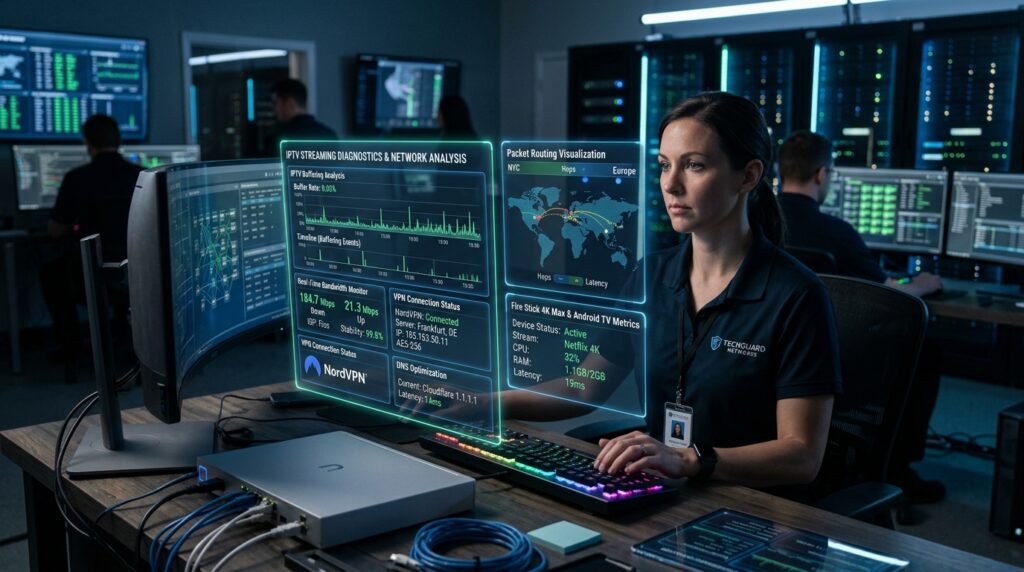
Quality of Service is an advanced feature found inside the settings dashboard of almost all modern home internet routers. QoS allows homeowners to create strict traffic priority rules for specific digital devices or applications operating on the network. By logging into your router dashboard, you can assign your primary streaming device top bandwidth priority over everything else. This means if another device starts a heavy download, the router automatically protects the internet supply going to your television.
                     ┌─➔ [Streaming Device] (Priority 1 - High Bandwidth)
[Router QoS Engine] ─┤
                     └─➔ [Other Devices]    (Priority 2 - Background Tasks)
To configure this option, look up your specific router model’s IP address and log in using a web browser. Locate the advanced network or QoS tab, find your streaming device’s MAC address, and set its priority level to High. This technical modification prevents household members from accidentally interrupting your live broadcasts during heavy network usage. Implementing these automated rules ensures a reliably optimized environment tailored for uninterrupted, premium home entertainment.
Using Powerline Adapters
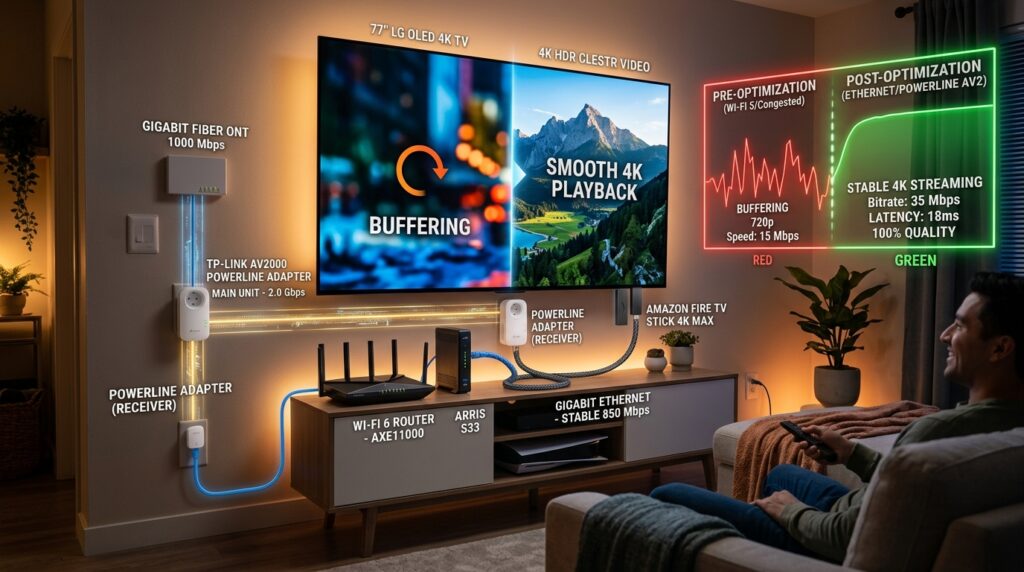
If your living room sits too far away from your main router, running long Ethernet cables through walls is highly impractical. Powerline adapters offer an ingenious alternative by turning your home’s existing electrical copper wiring into a high-speed data network. You simply plug one small adapter into an electrical outlet near your internet router and link them with a short network cable. The second adapter plugs into any wall outlet near your television box, providing an instant physical internet port.
[Router] ➔ (Ethernet) ➔ [Powerline Adapter 1] ➔ [Existing Home Electrical Wiring] ➔ [Powerline Adapter 2] ➔ (Ethernet) ➔ [TV Box]
This hardware solution delivers much better data consistency and lower overall packet loss than traditional wireless connections. It completely bypasses thick concrete walls, heavy mirrors, and household electronics that degrade wireless signals over long distances. Exploring competitive IPTV plans allows you to budget effectively for these useful hardware upgrades that maximize your streaming enjoyment. Combining smart network hardware with elite subscriptions guarantees long-term stability for all your live media needs.
Case Study: Overcoming Suburban Internet Throttling
A suburban household in Austin, Texas, struggled with severe playback freezing every evening between 7:00 PM and 10:00 PM. Despite subscribing to a premium 500 Mbps broadband package, their live sports feeds regularly degraded into unwatchable loops. A detailed network inspection revealed their local internet provider was actively throttling continuous video streams during peak regional usage hours.
Before Optimization: 500 Mbps Link ➔ Heavy ISP Throttling ➔ Severe Buffer Loops
After Optimization:  500 Mbps Link ➔ Premium VPN Tunnel ➔ Buffer-Free 4K Streaming
The family implemented a multi-step optimization plan by hardwiring their device via Ethernet and activating a premium VPN using the fast WireGuard protocol. They adjusted their media application’s playback buffer setting to “Large” and switched their network routing to the public Cloudflare DNS. These changes completely hid their video traffic from the provider’s automated throttling filters, dropping packet loss down to zero percent. The household successfully unlocked permanent, buffer-free IPTV solutions, allowing them to enjoy flawless 4K live broadcasts during peak evening hours without a single freeze.
“We tried everything from restarting our router to calling our internet provider, but nothing worked during the evening rush. It wasn’t until we encrypted our traffic with a VPN and optimized our application cache that our television streams finally became completely flawless.” – Mark T., Austin, TX
To ensure you enjoy a genuinely stable and highly reliable connection, you must select an elite provider that offers robust server infrastructure. Reviewing options to subscribe to IPTV reveals exceptional subscription plans designed to keep your live television streams perfectly stable year-round. Investing in high-grade digital architecture puts an absolute end to the stress of interrupted home entertainment.
Frequently Asked Questions Regarding Streaming Issues
Why does my IPTV buffer when my internet speed test is fast?
A high speed test score only indicates your general capability to download a single file from a nearby testing server. It does not reflect selective bandwidth throttling imposed by your internet provider on specific live streaming data paths. Additionally, standard speed tests cannot detect micro-bursts of local packet loss occurring over an unstable home wireless network connection. If your media player connects to an overloaded hosting server, buffering will occur regardless of how fast your personal home internet package claims to be.
What is the minimum internet speed required for buffer-free IPTV solutions?
For standard definition video, a consistent download speed of at least 5 Mbps is required to maintain basic playback stability. Stepping up to crisp High Definition video demands a continuous, uninterrupted speed of 10 to 15 Mbps. If you intend to stream premium 4K Ultra HD broadcasts, your network must maintain a highly stable, unyielding speed of at least 25 to 30 Mbps. To review available top-tier server options and verify compatible network structures, check the official Xtrem HD IPTV website for technical specifications.
Will a VPN completely stop IPTV buffering?
A premium VPN will successfully eliminate your playback issues if the root cause is internet service provider throttling or poor automated data routing. By hiding your data inside an encrypted tunnel, it bypasses the automated filters your provider uses to limit streaming bandwidth. However, a VPN cannot fix physical infrastructure issues such as a weak wireless signal, a damaged Ethernet cable, or an underpowered streaming device. If the underlying subscription server itself is completely overloaded with users, a VPN will not resolve those server-side limitations.
How do I clear the cache on my Amazon Firestick to fix freezing?

To clear your application cache, navigate directly to the main settings menu located on the home screen of your Amazon Firestick. Select the applications section and click on the sub-menu labeled manage installed applications to view your software list. Scroll down until you locate your preferred media player and click on it to open its specific operations panel. Select the clear cache option to purge temporary junk data without deleting your saved login credentials or custom channel lists.
Can old HDMI cables cause my streaming application to stutter?
While a faulty HDMI cable will not cause internet data buffering, it can definitely cause video signal dropping, audio desynchronization, and screen stuttering. If an older cable lacks the bandwidth capacity to handle modern copy-protection protocols or high-refresh 4K signals, your display will frequently blink or drop frames. This hardware stutter looks very similar to network lag and is often confused with server issues by casual viewers. Upgrading to a modern High-Speed HDMI cable ensures your streaming box transmits pristine video signals directly to your television screen.