
If you want to install IPTV on Windows, you’re in the right place. With the proper IPTV player, you can access a wide variety of live TV channels, movies, and series directly on your Windows PC. This guide will show you how to get started using two popular options for IPTV on Windows: TiviMate IPTV Player and IPTV Smarters Pro.
Download TiviMate IPTV Player:
Visit the Microsoft Store and search for TiviMate IPTV Player
Alternatively, download it directly from the official TiviMate website.
Install the App:
Once downloaded, open the installer and follow the on-screen instructions to complete the installation.
Launch TiviMate IPTV Player:
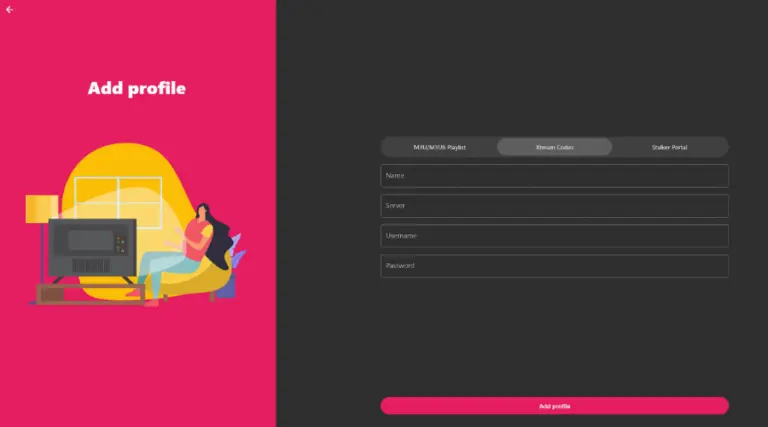
Open the app and navigate to the login page.
Log in Using Xtream Codes API or M3U Playlist:
Choose either Xtream Codes API or M3U Playlist to log in.
Enter your subscription details (username, password, and server URL) provided by your IPTV service.
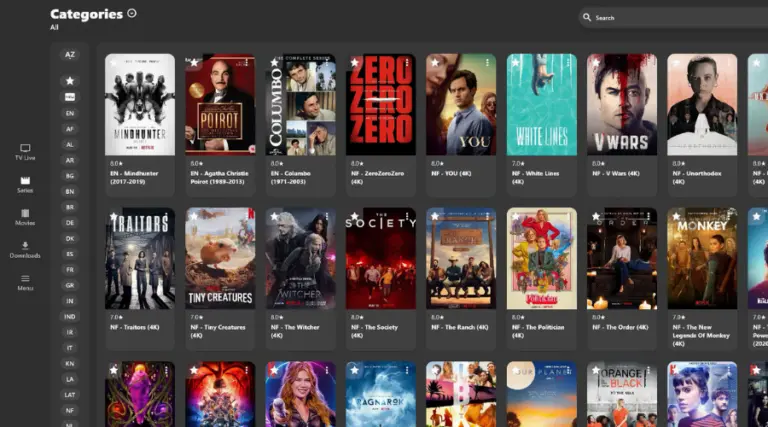
Start Streaming:
Open Your Web Browser:
Launch your preferred browser (e.g., Chrome, Edge) on your Windows device.
Visit the Official Download Page:
Go to the IPTV Smarters Pro download page.
Choose a Download Location:
Select a folder on your computer to save the setup
Locate the Downloaded File:
Navigate to the folder where you saved the setup file.
Start the Installation:
Double-click the setup file to begin the installation process.
Follow On-Screen Instructions:
Complete the installation by following the prompts.
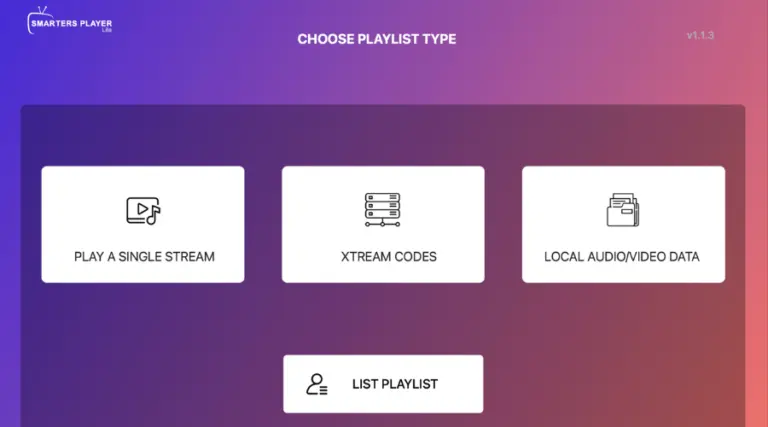
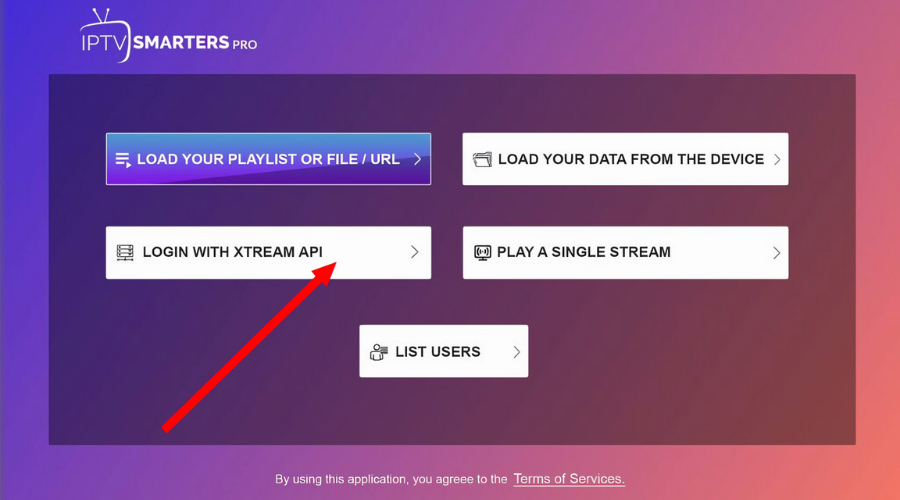
Open the Application:
Find the IPTV Smarters Pro icon on your desktop or Start menu.
Launch the App:
Double-click the icon to open the app.
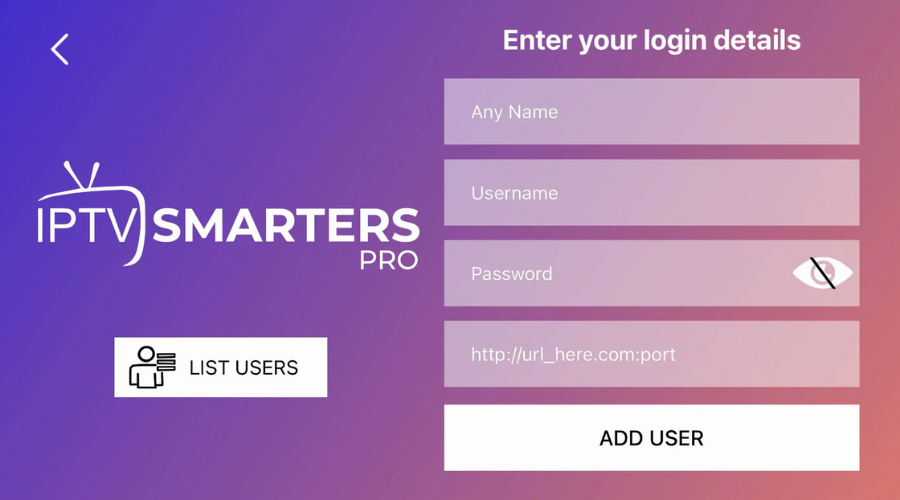
Authorization Failed: Double-check your login details for typos. Ensure the server URL starts with http://.
App Not Working: Make sure your Windows device meets the app’s system requirements.
Contact Support: If you encounter issues, reach out to your IPTV provider via email or WhatsApp for assistance.