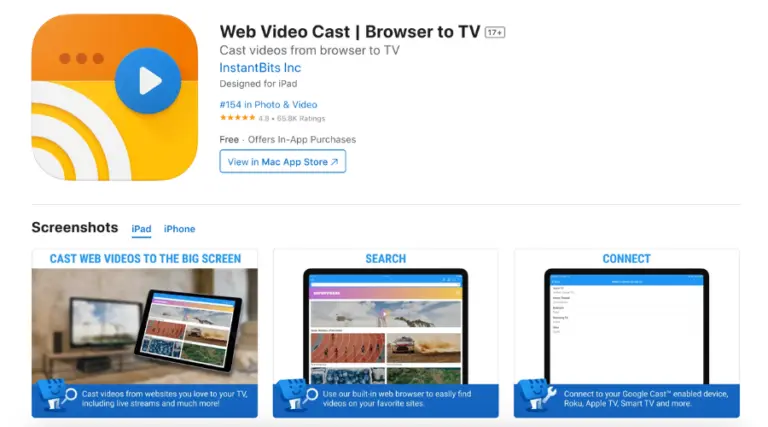
If you want to learn how to install IPTV on Roku, you’re in the right place. Setting up IPTV on your Roku device is simple when you use the right tools, even though Roku doesn’t support M3U players in its store. The workaround is to use an Android or iOS device with the Web Video Caster app, which lets you stream IPTV content directly to your Roku. The app is available on both the Google Play Store and the Apple App Store.
Follow these steps to install IPTV on Roku and start streaming:
To begin, download and install the Web Video Caster app on your Android or iOS device. Once you have installed the app, open it to proceed with the setup.
Once you open the app, tap the three lines in the top-left corner to access the sidebar menu. Then, choose IPTV from the available options to set up the IPTV configuration within the app.
Tap the + icon to open the blank field under “IPTV address.” Paste the M3U URL provided by your IPTV service into this field. You can also name your IPTV list (e.g., IPTV2025) for easy access.
Close the sidebar, then tap the Cast icon in the top-right corner-it appears as a TV screen with signal waves. Choose your Roku device from the list of available options to start casting IPTV. Make sure both your smartphone and Roku are connected to the same Wi-Fi network, then tap Done to proceed.
Open the IPTV section in the Web Video Caster app and choose the IPTV account you configured in Step 3. Give it a few seconds for the playlist to load, then select your Roku device and tap Play to start streaming IPTV content.